
Search
Two-Factor Authentication
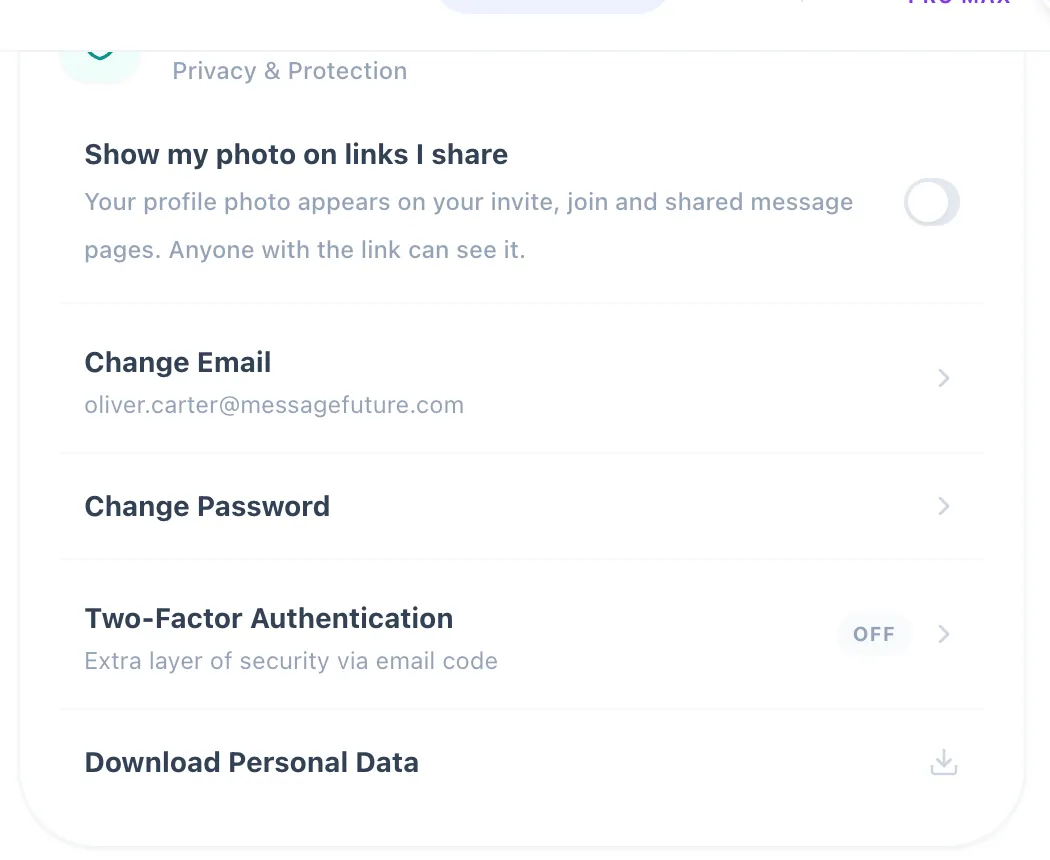
Two-Factor Authentication adds a second step when you sign in: after your password, you enter a code we email you. Turn it on in Settings, under Security.
How do I turn it on?
- Confirm your email address first, if you haven’t yet.
- Open Settings and find Two-Factor Authentication.
- Choose Enable 2FA.
- We email you a code. Enter it with your password to confirm.
- Save your backup codes somewhere safe.
What are backup codes?
You get 10 backup codes when you turn it on. Each one works once, in place of the emailed code, if you can’t get to your email. Keep them somewhere only you can reach.
What happens when I sign in?
After your password, enter the 6 digit code from your email. Tick Remember this device for 14 days to skip the code on that device for 14 days.
How do I turn it off?
Open Settings, find Two-Factor Authentication and turn it off. You confirm with your password and a code we email you.